Digital forensic software has to do more than extract data from a phone. A 2022 inspection by the police inspectorate for England and Wales (HMICFRS) found that most, if not all, crimes now leave some form of digital footprint, and that demand for digital forensic examinations was rising year on year, in some cases outstripping the capacity of forces. The same inspection found a national backlog of over 25,000 devices waiting to be examined, with some victims’ phones kept for many months.
Extraction and decryption get the data into the lab. Analysis is where examiners decide what matters, in what order, and what they can show in court. That is why Oxygen Forensic® Detective includes ten built-in analysis tools, from Timeline and Social Graph to AI-based image categorization, speech-to-text and a built-in translator, at no extra charge. This guide walks through them in the order of a typical examination, from first look to final report.
Statistics: Get a Quick Overview of the Extraction
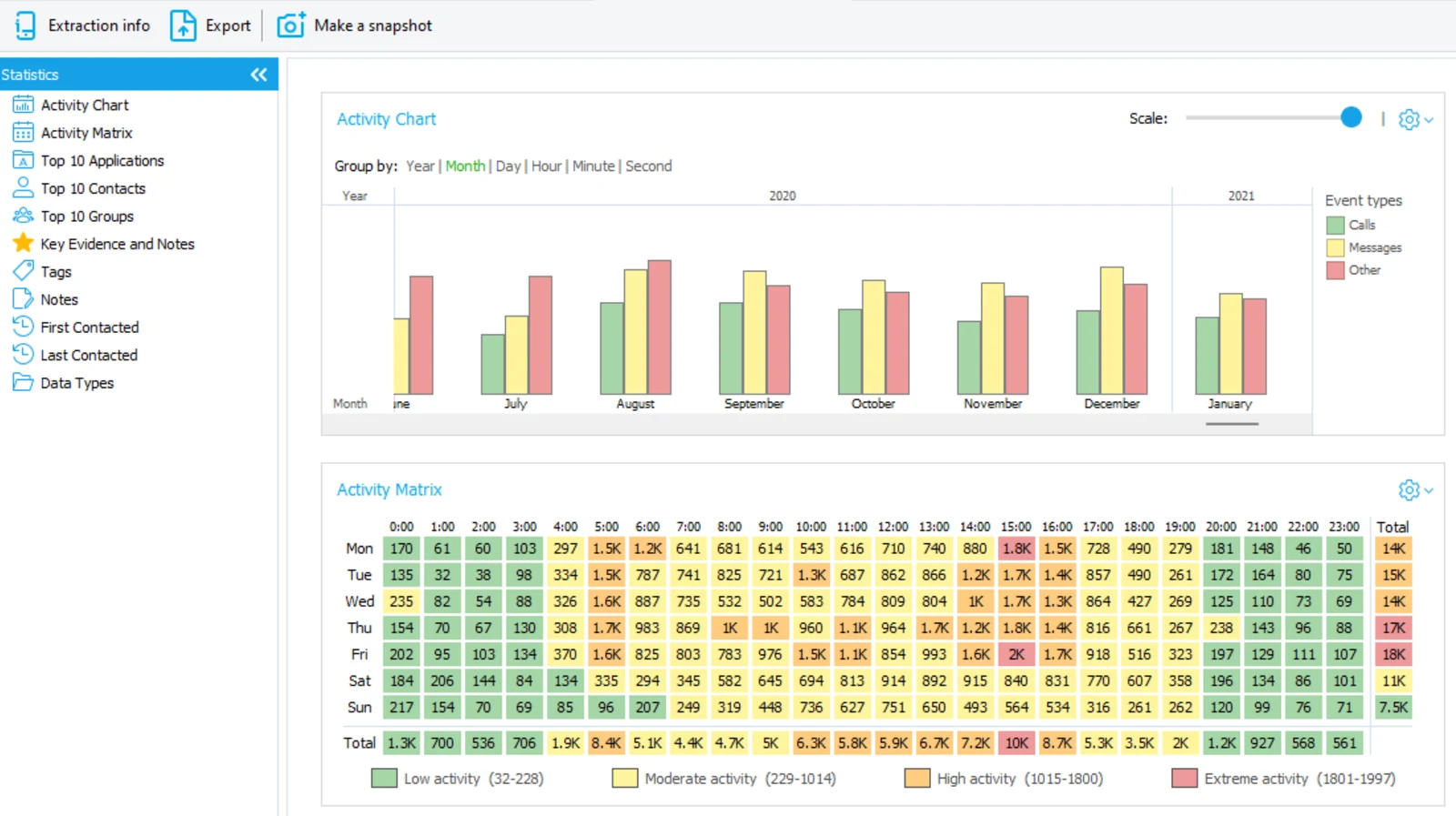
Every examination starts with the same question: where should I look first? The Statistics page answers it in a single view. It summarizes what was extracted, including apps, contacts, communications and file types, so you can decide where to start before opening a single chat.
Timeline Analysis: Reconstruct What Happened and When
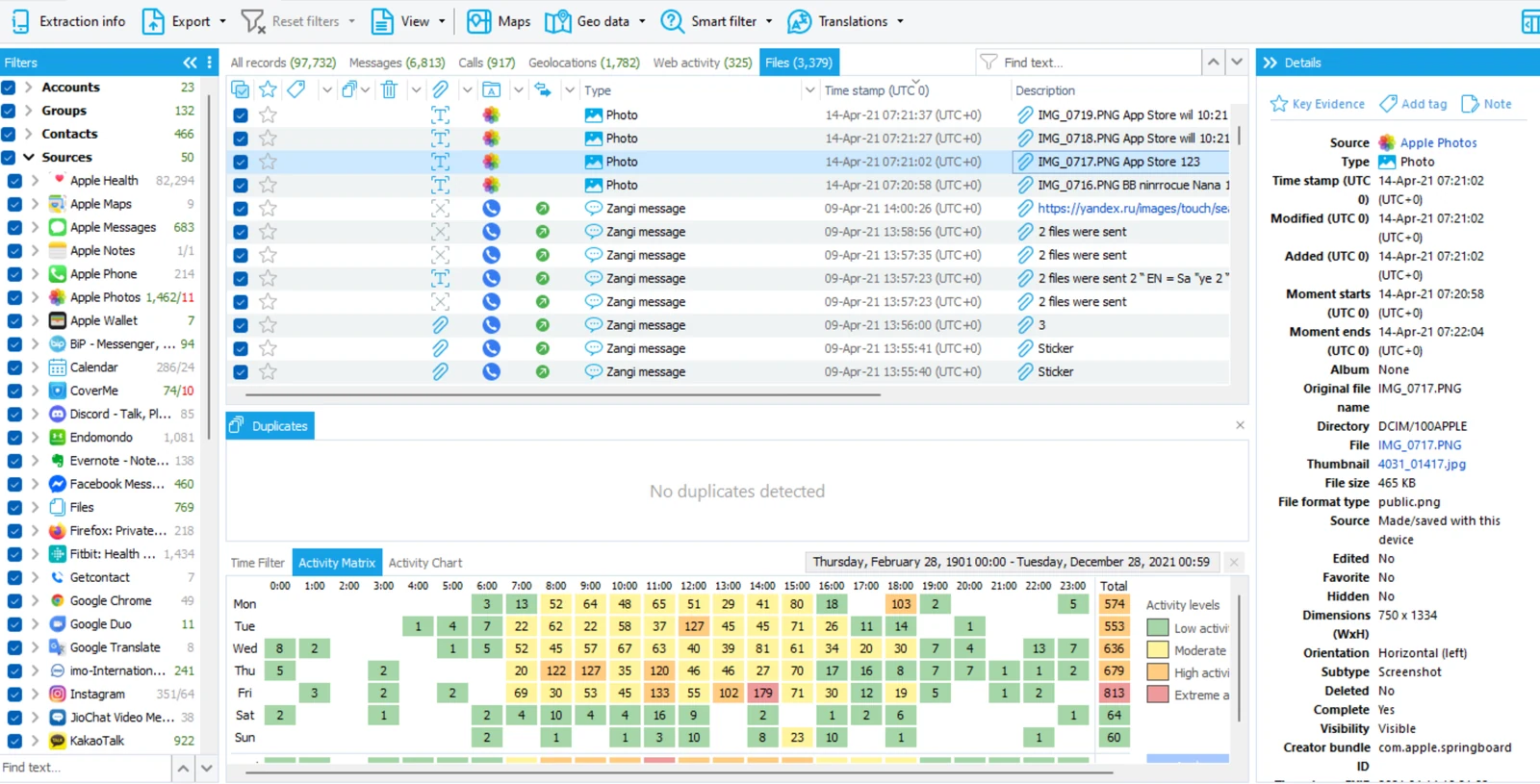
Once you know what is on the device, Timeline shows you when things happened. It places all data from an extraction or case in one chronological view, so you don’t need to jump between sections to piece events together.
Calls, web activity, web connections, photos, videos, calendar events, in-app chats and more are already there. The robust filters are what make the section so useful: filter by source, date range or keyword to narrow thousands of events down to the ones that matter.
Data from Timeline can also be opened in other analytic sections of the software. The Activity matrix and Activity chart in the bottom panel help you detect when the device was used most. Typical uses include reconstructing the sequence of events, establishing a suspect’s movements and spotting unusual activity.
Data Search: Find Specific Evidence Across Extractions
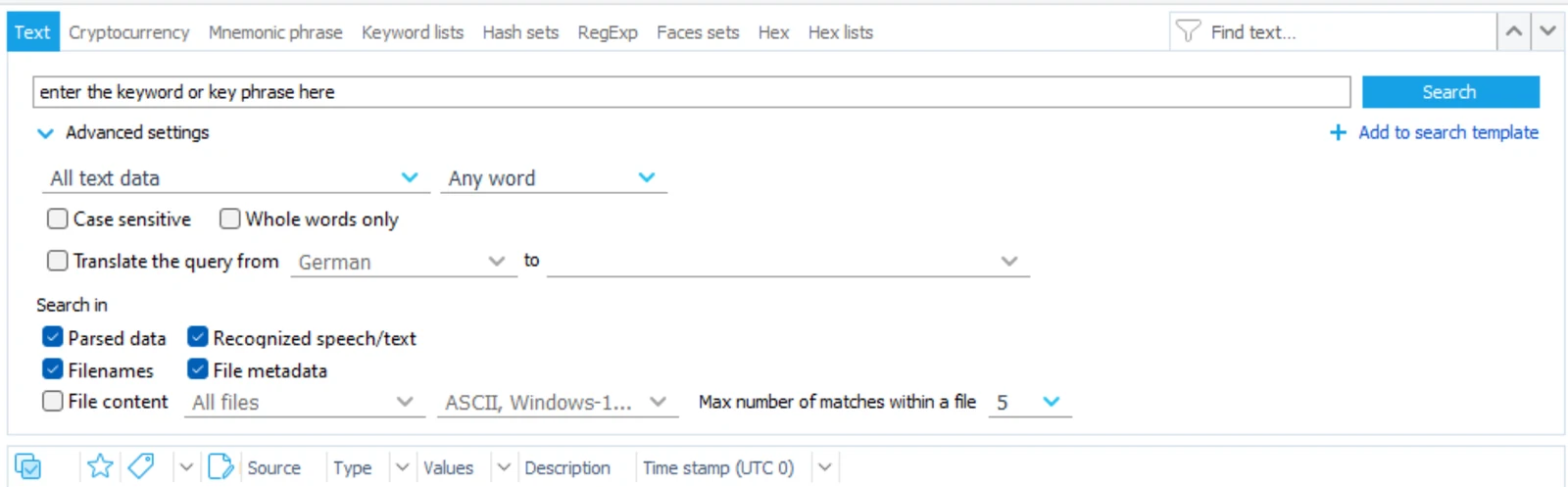
When you know what you are looking for, Data Search finds it. Search for a word, a phrase, a set of keywords, a credit card number, a cryptocurrency address or transaction, a mnemonic phrase, or every email address mentioned, and choose how wide to search. You can search across the following scopes:
- a single device
- parsed data
- all devices in a case
- all devices in a database
A Regular Expression library is available for custom searches, and you can also create a set of keywords for a data search. A text query can be translated from or to any language supported by the software.
You can also search by hex or face sets using the corresponding tabs above the grid. Just import an image with the face of interest, and Oxygen Forensic® Detective will take care of the rest.
Social Graph: Visualize Who Communicated with Whom
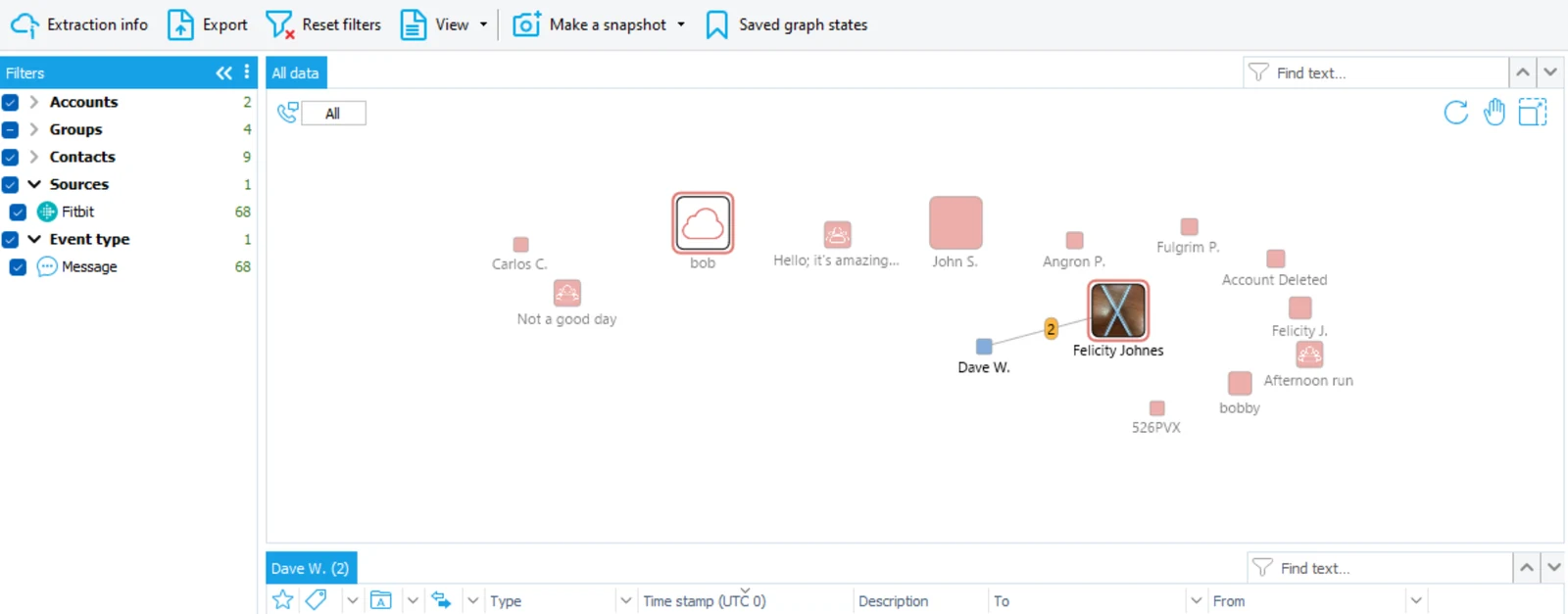
After finding key content, the next question is who was involved. The Social Graph shows who communicated with whom, how often and through which app, for one device or for several devices in the same case. Open it from the extraction or case home screen and watch the web of connections take shape.
Change view modes, apply filters, and find the shortest path and common contacts in no time. You can export the results as an .SVG file, so you can zoom in without any loss of quality.
AI Image Categorization: Triage Large Volumes of Media
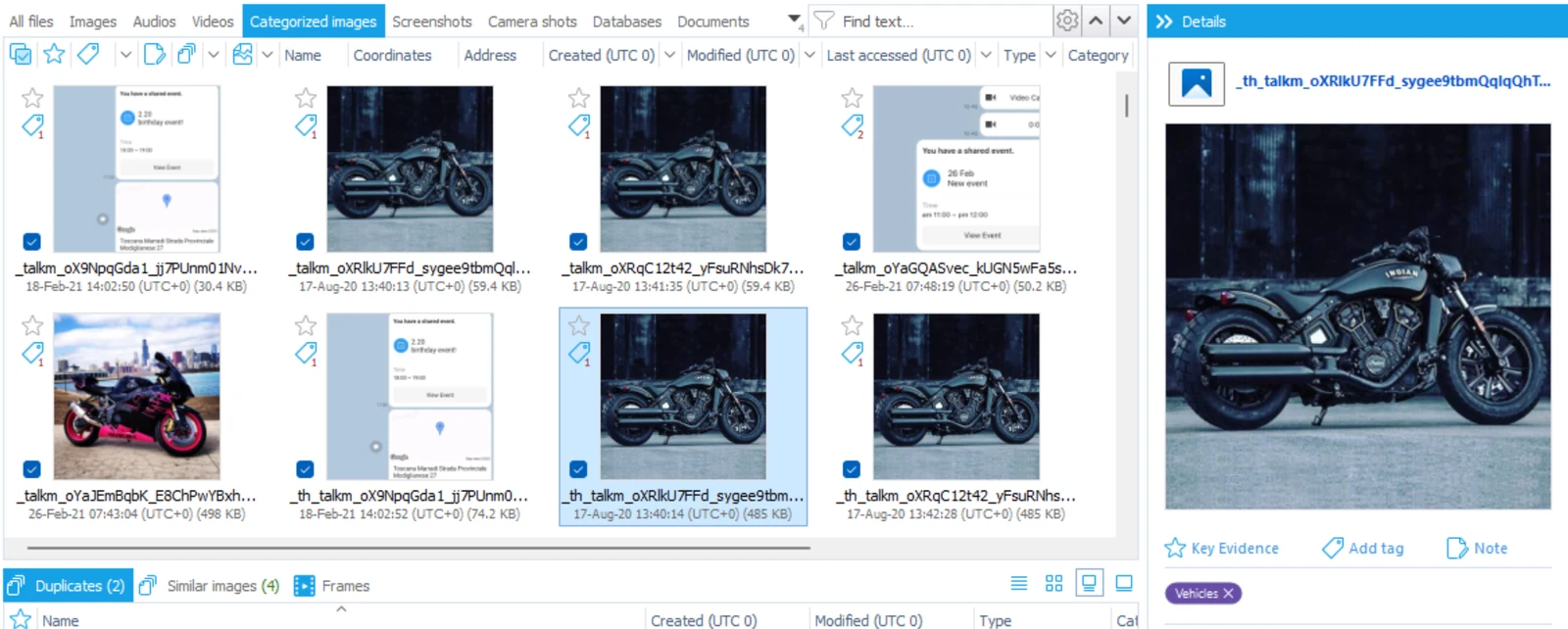
Photos and videos can make up a large share of an extraction, and reviewing them one by one is slow. AI-based image categorization helps you triage large volumes of media by flagging the possible presence of specific content, so you can prioritize what to analyze first. Run it to detect the following categories in photos and videos:
- Sensitive or illegal content: pornography, nudity, extremism, graphic violence, drugs, child abuse, weapons, gambling, alcohol
- Documents and identification: documents, IDs, credit cards, currency, QR codes, barcodes
- Objects and scenes: vehicles, aircraft, maps, chats, medical, schematic
- Other: memes, offensive gestures, tattoos
Once the analysis is over, all of these categories work as filters.
The feature is based on a neural network that analyzes the visual content of each image and estimates how closely it matches each supported category. Some prompts can be edited by the user. Results are meant to help prioritize review, and the examiner should verify them.
Facial Recognition: Find People in Photos Faster
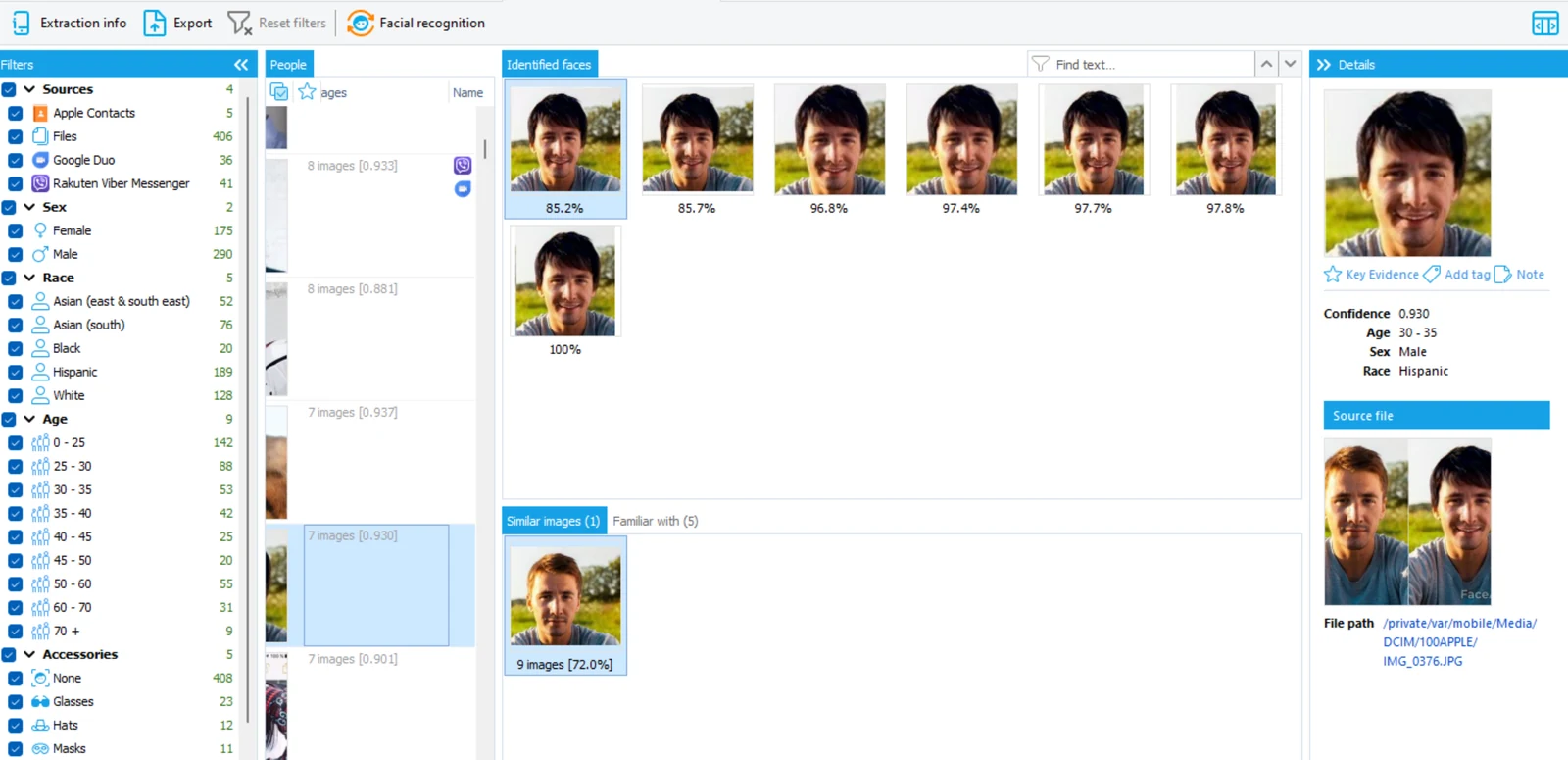
Once media is triaged, you often need to know who appears in it. Going through thousands of photographs by hand to identify people is slow. All you have to do is open the Faces section and run facial recognition.
All faces detected in the extraction’s images are grouped by person. The filters on the left help you find a specific person or picture. You can bind every person to a contact within the extraction to help you navigate who is who. You can also import a photo of a person of interest and search for matching faces.
OCR and Speech-to-Text: Turn Images and Audio into Text
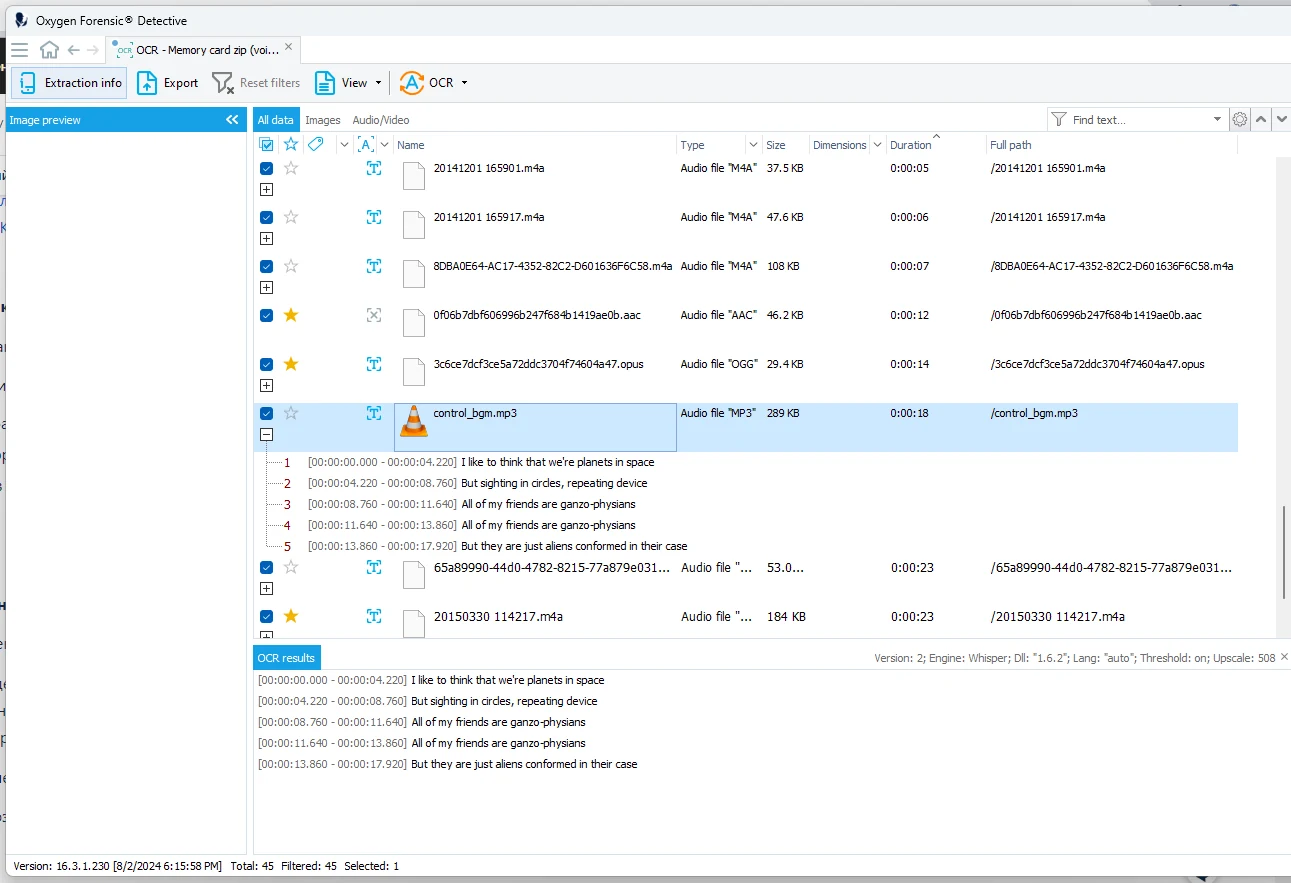
Not all evidence is typed text. Screenshots, photos of documents, scanned pages, images with subtitles, and audio and video files can hold key information that a keyword search would miss. Oxygen Forensic® Detective has a built-in Speech and Text Recognition feature that identifies typed, handwritten or printed text in an image and converts it into machine-encoded text. It also transcribes speech from audio and video files.
Whether the text comes from a scanned document, a photo of a document, a screenshot of a conversation or an image with subtitles, Oxygen Forensic® Detective can convert it. As with any automated analysis, the examiner should review the results.
Built-In Translator: Review Multilingual Evidence Without Leaving the Software
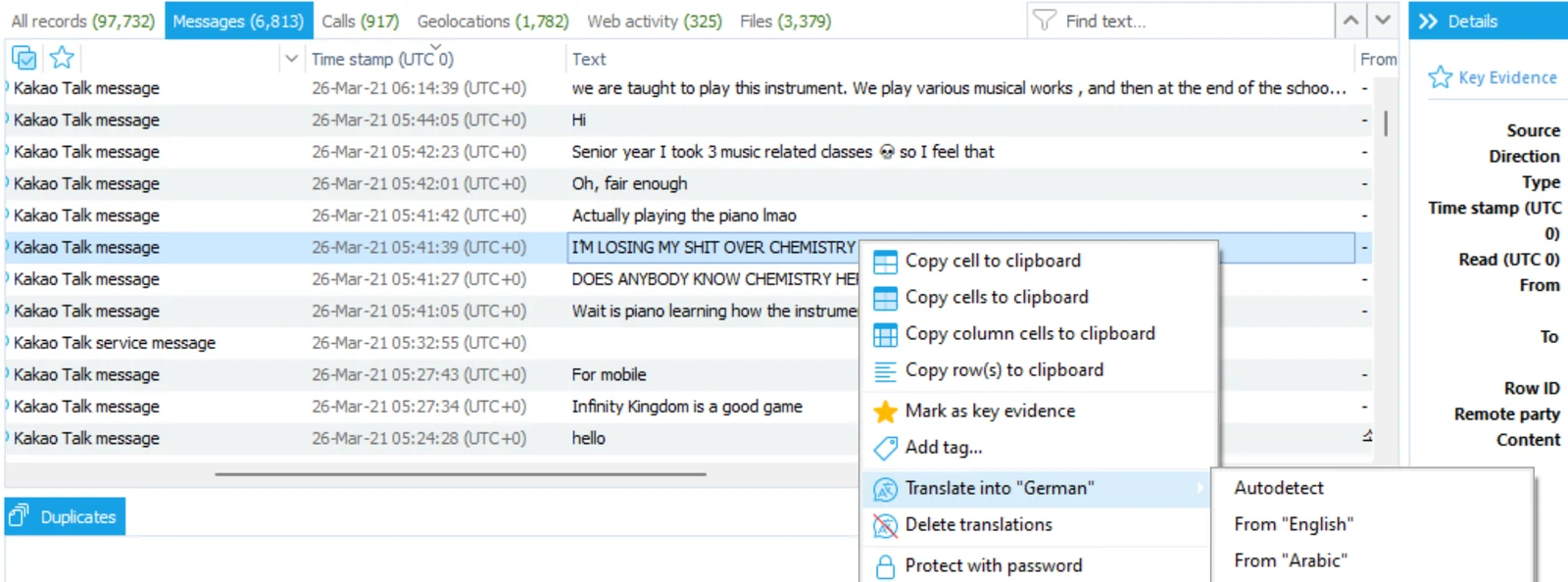
Some cases involve multilingual data. The built-in translator is available at no extra charge and makes data in more than 60 languages understandable. Translate chats, emails and notes directly within the software, without leaving your workflow.
To use it, download the add-on from the Customer area and enable translation from the “Options” menu.
Key Evidence and Notes: Keep Your Findings in One Place
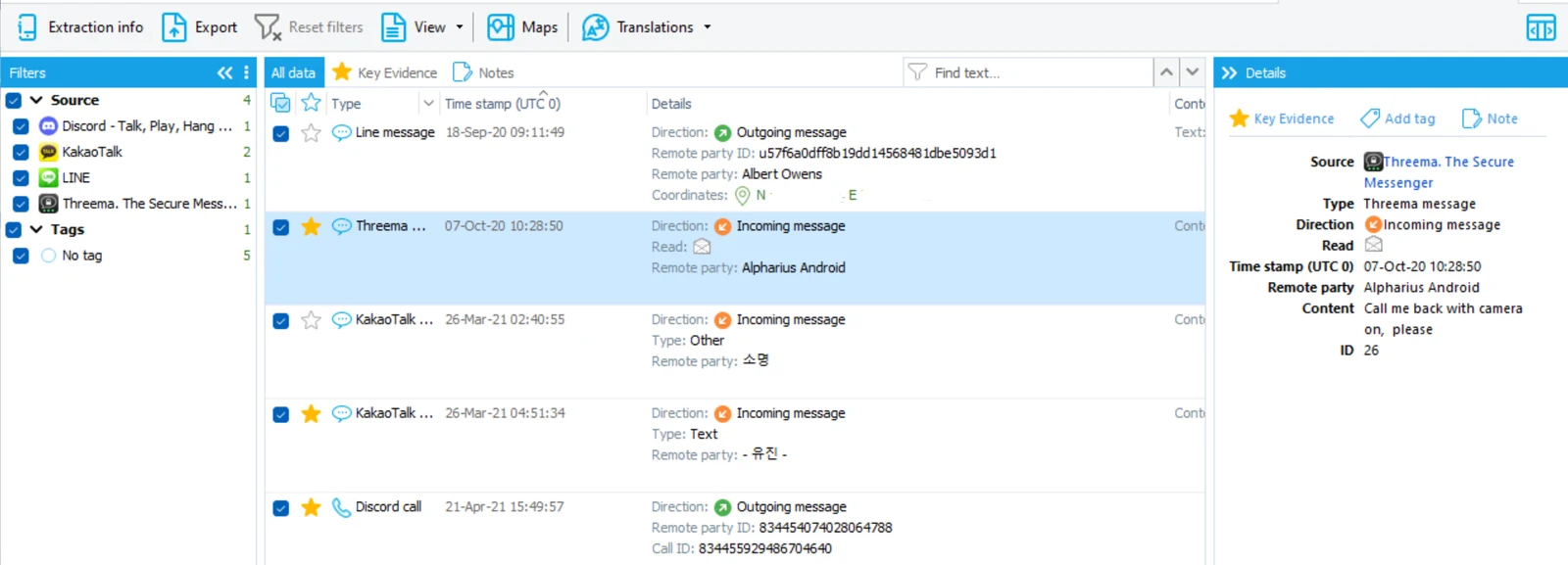
As the case takes shape, mark the entries that matter as Key Evidence and add notes to them. The Key Evidence section then shows only those items, so your findings stay in one place when you hand a case over to a colleague or start preparing your report.
Protect with Password: Restrict Access to Confidential Evidence
Some evidence is too sensitive or privileged for every team member to see. Protect with password makes confidential evidence inaccessible during analysis, which helps restrict access to privileged material and supports your evidence handling policies. This is useful for experts working with sensitive and confidential content in legal investigations.
To set a password for the entire extraction, click the lock icon next to it. To set a password for specific entries, select them, pick “Protect with password” from the drop-down list and enter the password.
Once password protection is enabled, all sensitive and confidential data is displayed in red. It also remains unavailable after export for any investigator who does not have the password.

Together, these ten tools take an examiner from first look to a case-ready set of findings inside one platform, at no extra charge. Want to try them all? Request a trial license.